Why Use a Dedicated Screenshot App? 7 Benefits for Faster Communication
7 practical benefits of a dedicated screenshot app: single-key annotations, instant blur, scrolling capture, searchable Library, and quick MP4 clips.
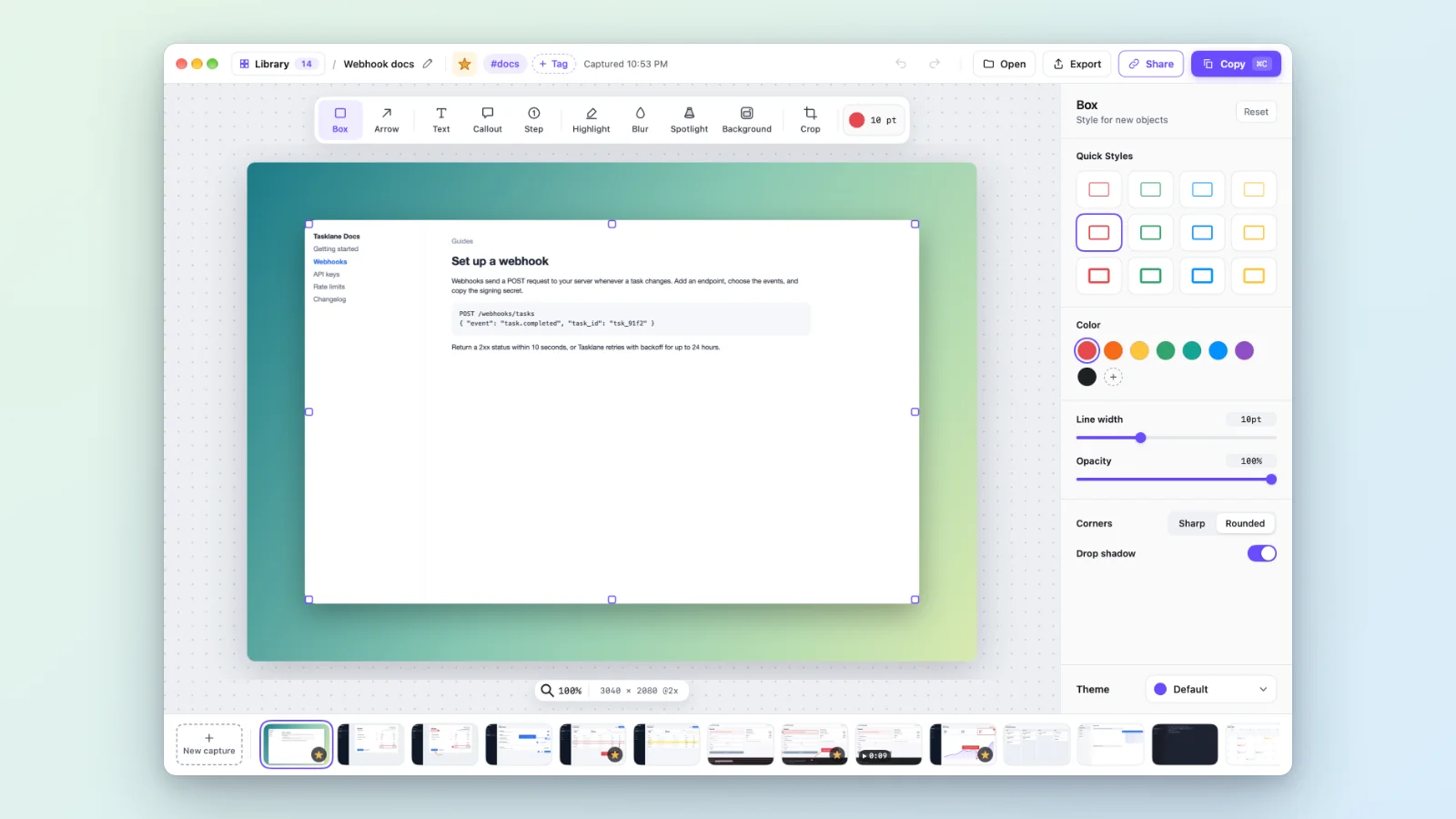
Every computer already lets you grab a picture of your screen. Yet most people still send raw, uncropped screenshots into Slack, email, or Jira, followed three minutes later by a reply asking: “Wait, what am I looking at?”
A dedicated screenshot and capture app does more than snap pixels. It turns screenshots into self-explanatory visual messages that get answered on the first reply. Here are seven concrete benefits you notice on day one.
1. Clearer communication with zero back-and-forth
When you drop a raw full-window screenshot into a busy channel, the recipient has to scan every menu, table row, and button to guess what matters.
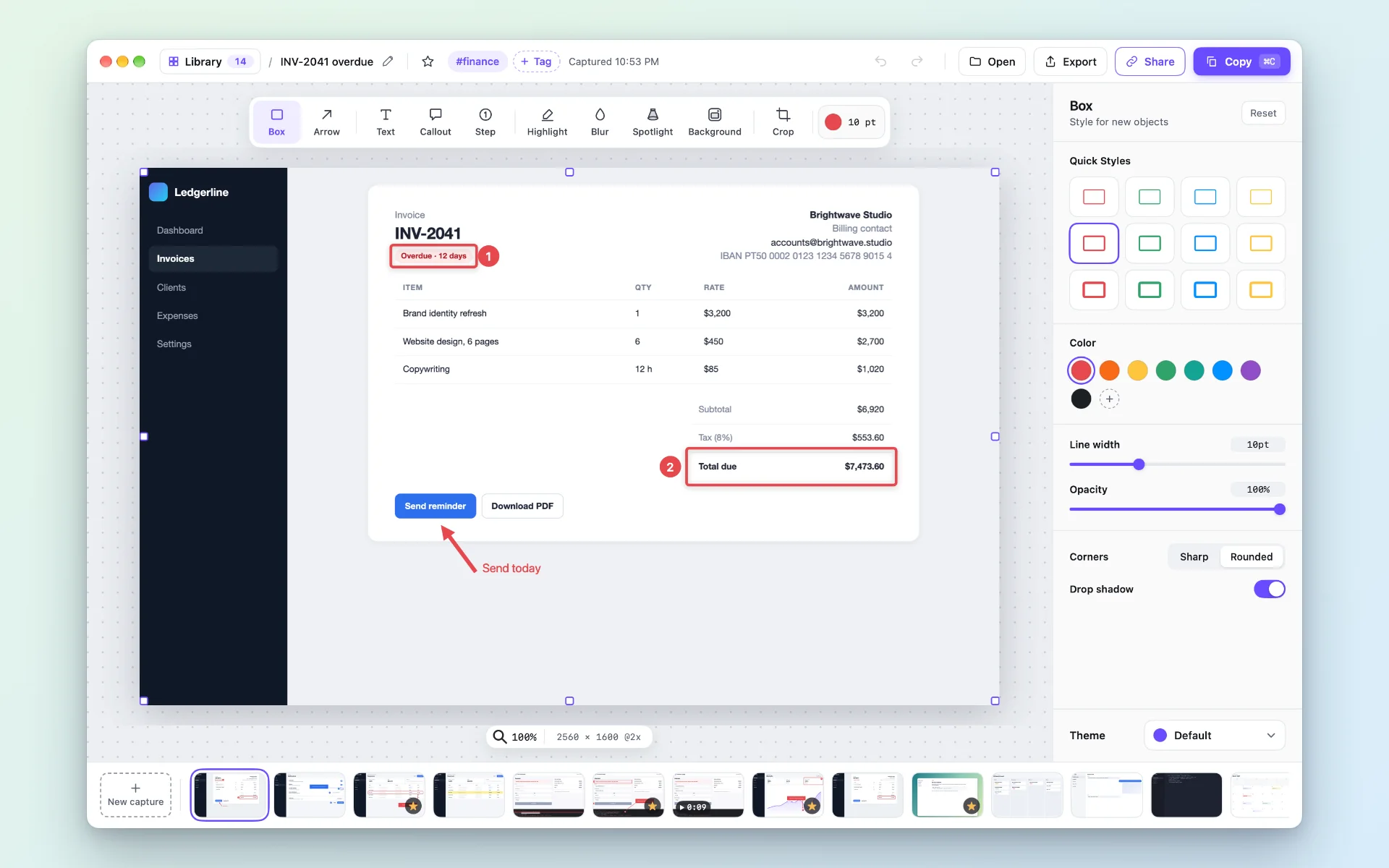
With a dedicated annotation editor, adding a red box around the broken field, an arrow pointing to the right button, and a two-word callout takes under five seconds. Instead of writing a three-paragraph explanation or jumping on a 10-minute call, the image answers the question on sight.
2. Single-key annotation speed instead of menu hunting
Built-in markup tools force you to click tiny toolbar icons, switch menus to pick shapes, and manually draw numbers or labels. A purpose-built screenshot editor is designed around muscle memory.
In Chop, every annotation tool maps to one letter key:
- B for Box
- A for Arrow
- T for Text
- N for Callout
- S for Step (numbered circles
1,2,3) - H for Highlight
- X for Blur
- O for Spotlight
- C for Crop
Once your fingers learn three or four of those keys, marking up a screenshot feels as natural as copy-and-paste.
3. Instant redaction before sensitive data leaves your machine
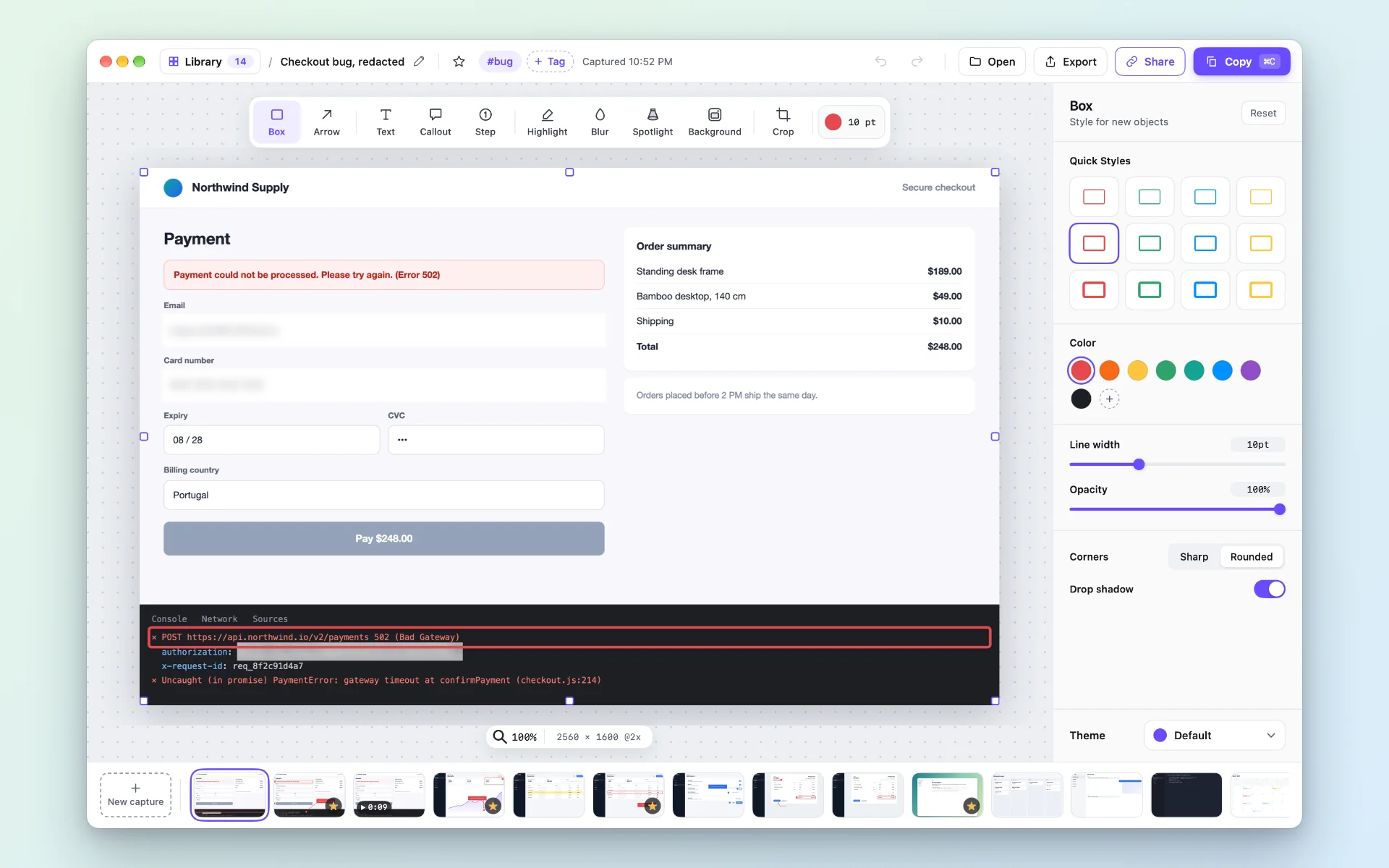
Real work screens are full of details that should never leave your laptop: customer email addresses, billing totals, API keys, staging URLs, and unrelated browser tabs.
A dedicated screenshot tool makes blurring and spotlighting part of the same 5-second capture step. In Chop, you press X, drag over any sensitive text, and copy the redacted image locally so nothing touches a third-party server. Read our full walkthrough on how to blur sensitive information in screenshots for practical redaction habits.
4. Scrolling capture for tall pages and long threads
Modern web apps, analytics dashboards, API docs, and chat threads rarely fit inside a single screen height. Taking four overlapping screenshots and pasting them in reverse order into a ticket wastes everyone’s time.
With Scrolling capture, you capture an entire scrollable page or conversation as one crisp, continuous image that stays easy to read and archive.
5. Floating thumbnails and pinned reference images
Taking a screenshot shouldn’t break your flow or bury the window you were working in.
- After-capture thumbnails: A small preview pops up in the corner while the image is copied straight to your clipboard. Drag it directly into a chat, doc, or issue tracker, or ignore it and let it fade away.
- Pin to screen: Float a screenshot on top of every window while you transcribe numbers, compare design specs, or check an error trace across two apps.
These small workflow shortcuts eliminate dozens of window switches every day.
6. A searchable local library where edits stay editable
Default OS screenshot tools dump files named Screenshot 2026-11-25 at 10.42.19.png onto your Desktop or into a flat Screenshots folder. Two days later, finding the invoice screenshot you sent to finance means squinting at fifty identical thumbnails.
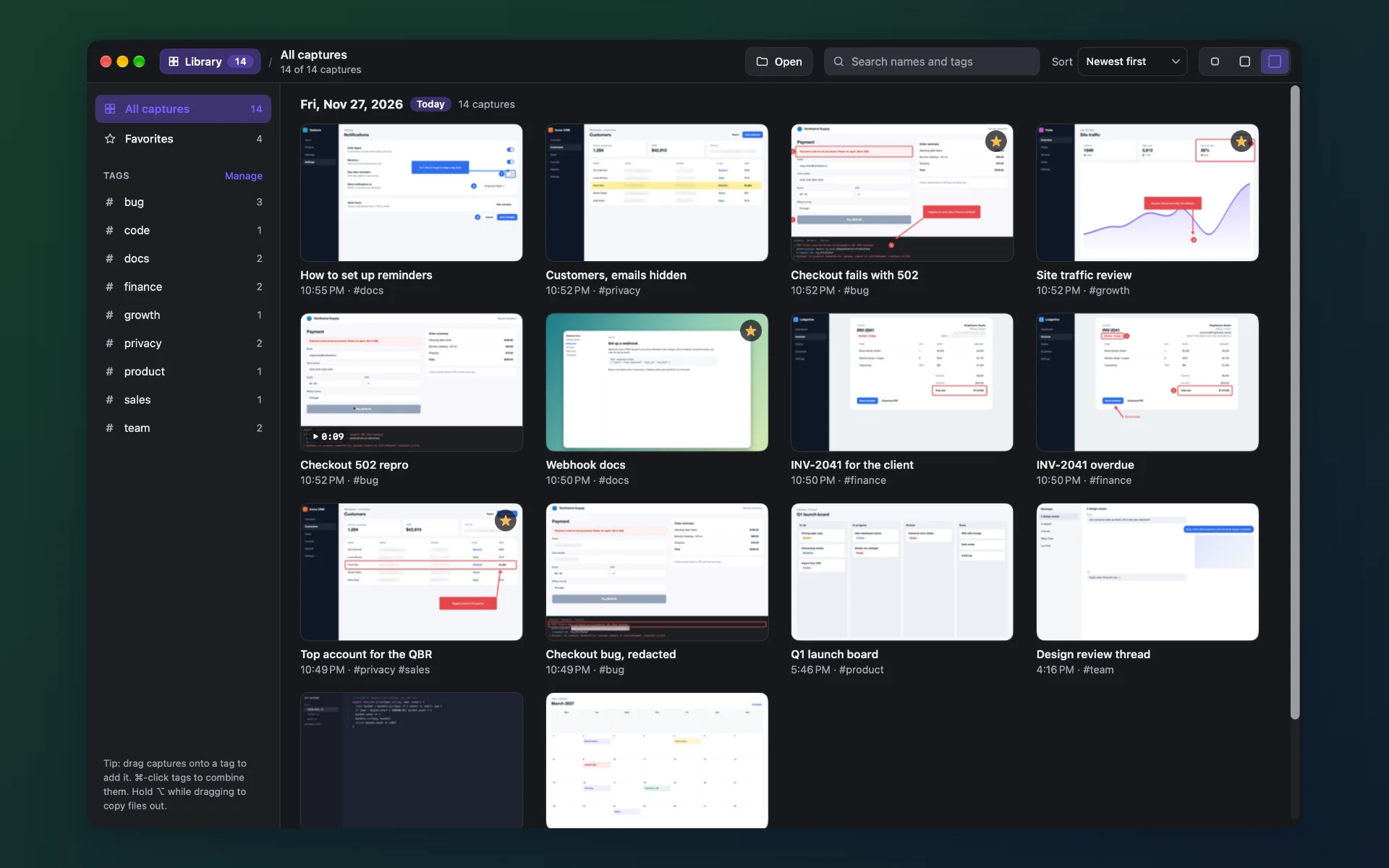
A dedicated Library changes screenshots from disposable clutter into a reusable notebook:
- Captures are automatically grouped by day
- You can rename, star, and tag shots by project or customer
- Search finds last week’s capture by name or tag in a second
- Every annotation stays editable when you reopen an older screenshot, so fixing a typo in a callout or blurring one more line doesn’t force you to recapture from scratch
7. Quick screen recordings and video trimming in the same app
Sometimes a still screenshot genuinely isn’t enough, such as showing a hover glitch, a flickering modal, or a three-click workflow.
Instead of opening a separate heavy screen recorder and then launching a video editor just to snip five seconds off the start, a unified capture tool lets you:
- Press one hotkey (⇧⌘1 on Mac, Ctrl+Shift+1 on Windows/Ubuntu) to record a window or region to MP4
- Trim the start, end, or middle right on the timeline
- Paste or share the finished clip in seconds
Try the difference on your next five screenshots
The best way to feel the upgrade is to use a dedicated tool on the screenshots you were going to take today anyway. You can download Chop free for macOS, Windows, or Ubuntu. Screenshots, all 9 annotation tools, and backgrounds are free forever, and every download includes a 30-day Chop Pro trial with no account required.
Want to see exactly where the built-in OS tools fall short? Read our side-by-side comparison of the limitations of default screenshot tools on Windows and macOS.
Frequently asked questions
Is a dedicated screenshot app worth it if my OS already has one?
If you send more than a handful of screenshots each week, yes. A dedicated tool removes the extra steps between capturing, annotating, blurring private data, and finding older screenshots later.
Does a screenshot app slow down my computer?
A lightweight desktop capture tool like Chop sits quietly in the menu bar or system tray and only opens its overlay when you press the capture shortcut.
Do I have to upload my screenshots to the cloud to use a dedicated app?
Not with Chop. Captures are saved locally in your Pictures folder, work completely offline, and are only uploaded to your own Google Drive if you explicitly click Share.